The Best Way to Merge PDF Files on iPhone (No App Needed)
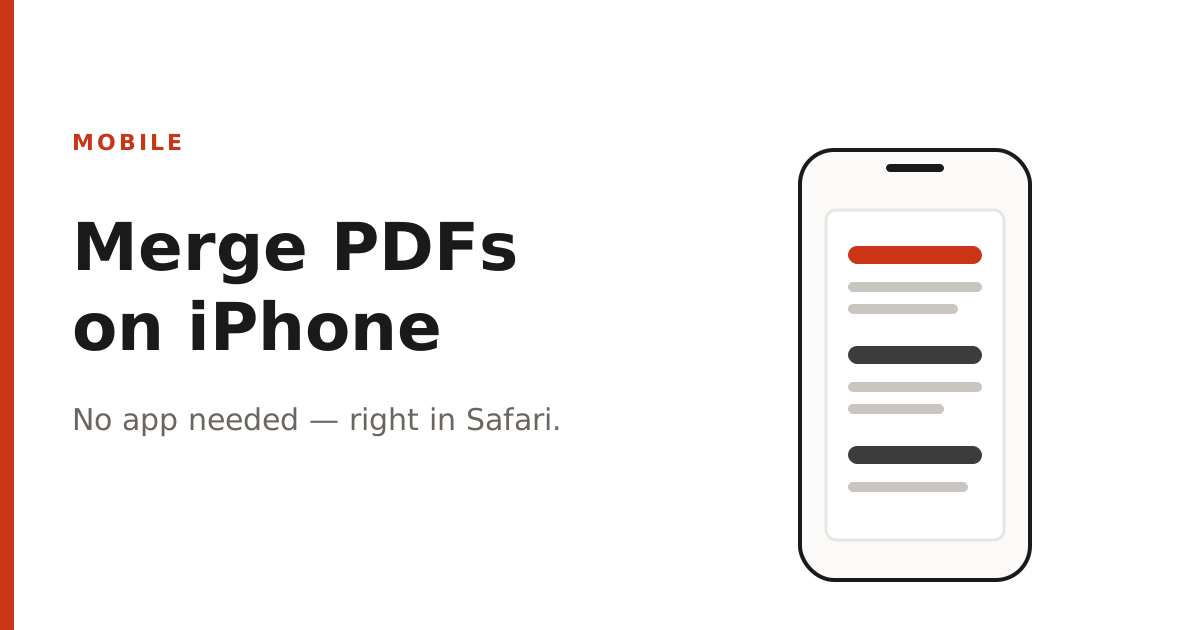
You don't need to install anything to combine PDFs on your iPhone. Here's the fastest browser-based method.
At a glance
You don't need to install anything to combine PDFs on your iPhone. Here's the fastest browser-based method.
Merging PDFs on an iPhone used to mean downloading a dedicated app, granting it access to your files, and often hitting a paywall after a couple of uses. You can skip all of that using a browser-based merge tool that works directly in Safari or Chrome on iOS.
How to merge PDFs on iPhone in Safari
- Open Safari and go to our Merge PDF tool.
- Tap the upload area — this opens the iOS file picker, where you can choose files from Files, iCloud Drive, or a recent download.
- Select your first PDF, then tap the upload area again to add more files.
- Drag to reorder the files if needed, then tap "Merge PDFs."
- Tap "Download" and choose "Save to Files" to keep the merged PDF on your device.
Why this is better than an app for a one-off task
- No installation, no app storage used, no account required.
- Works identically on iPhone, iPad, and Mac — one bookmark instead of multiple apps.
- Files are processed locally in your browser and never uploaded, so nothing about your document touches a server.
- No daily limit — merge as many sets of files as you need.
If you frequently work with PDFs on mobile, add the site to your Home Screen from Safari's share menu — it will open full-screen like an app for quick access.
About PDFNest
PDFNest provides free, PDF and Word tools. Most process files in your browser; Word to PDF uses server conversion. No signup, no limits, no watermarks, no paid tier — everything on the site is free.