How to Convert a Scanned PDF to Word Without Losing Formatting
Scanned PDFs are images, not text — here's the right way to turn one into an editable Word document while keeping the layout intact.
At a glance
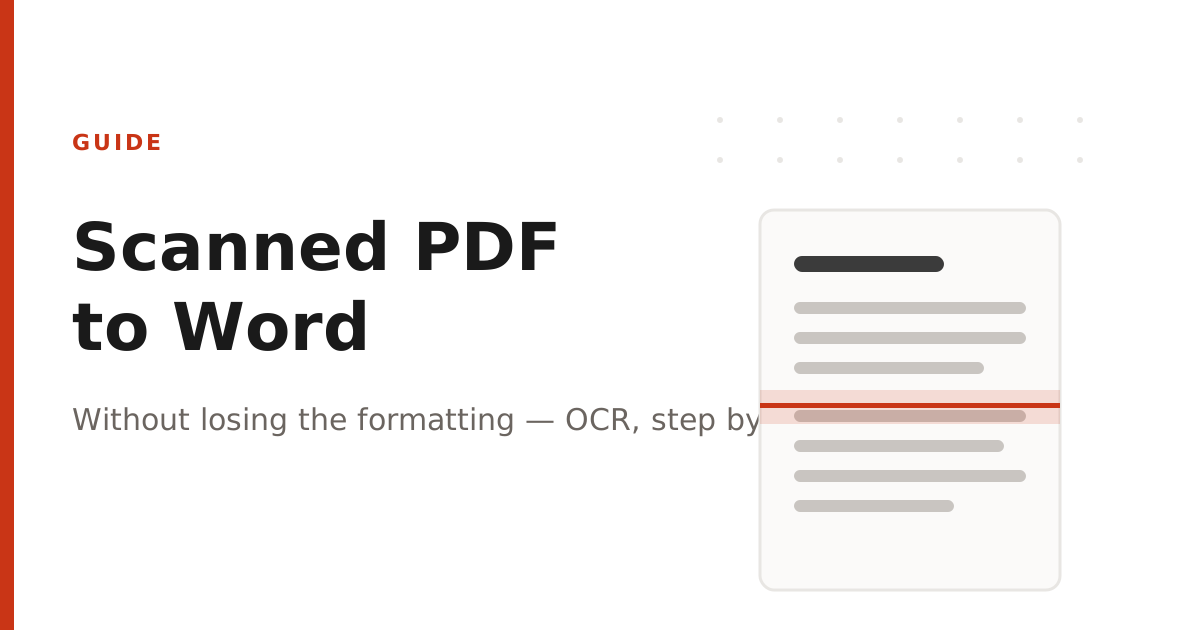
Scanned PDFs are images, not text — here's the right way to turn one into an editable Word document while keeping the layout intact.
A scanned PDF is fundamentally different from a PDF exported from Word: it's a photograph of a page, not text your computer can select or edit. If you try to convert a scanned PDF to Word directly, most tools will either fail silently or produce a document full of garbled characters. Here's how to do it properly.
Step 1: Run OCR first
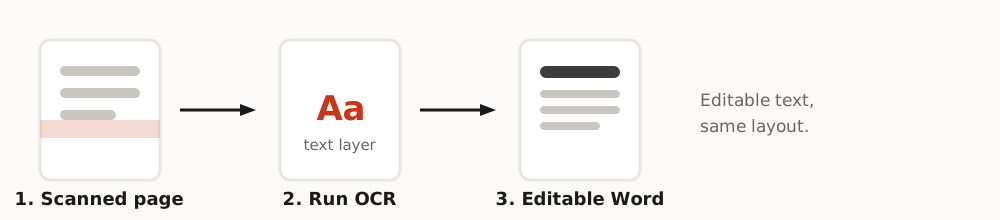
Optical Character Recognition (OCR) analyzes the image of each page and recognizes the actual letters and words within it, turning a picture of text into real, selectable text. Without this step, a PDF to Word converter has nothing to extract — there's no text layer to read.
Step 2: Convert the OCR'd PDF to Word
Once your PDF has a text layer, use our free PDF to Word converter to extract that text and rebuild it as an editable .docx file. Because the conversion happens entirely in your browser, the original scanned file never has to be uploaded anywhere — useful if the scan contains anything sensitive.
Tips for keeping formatting intact
- Scan at 300 DPI or higher — low-resolution scans confuse OCR engines and produce more errors.
- Keep pages straight; a heavily skewed scan reduces recognition accuracy.
- Expect to do light manual cleanup afterward, especially around tables and multi-column layouts, since OCR reconstructs structure rather than reading it directly.
- For documents that are mostly plain paragraphs (letters, reports, essays), OCR + convert works very well; for dense tables or forms, double-check the output carefully.
If your PDF was created digitally (not scanned) — for example, exported from Word or Google Docs — skip OCR entirely and go straight to our PDF to Word converter, since the text layer already exists.
About PDFNest
PDFNest provides free, PDF and Word tools. Most process files in your browser; Word to PDF uses server conversion. No signup, no limits, no watermarks, no paid tier — everything on the site is free.